Your download is starting
Download not starting automatically? Download again
Step-by-Step Installation Guide
Screens may look slightly different depending on your browser or Windows version.
-
Open the installer
When the download finishes, select Open file. You can also find the installer in your Downloads folder.
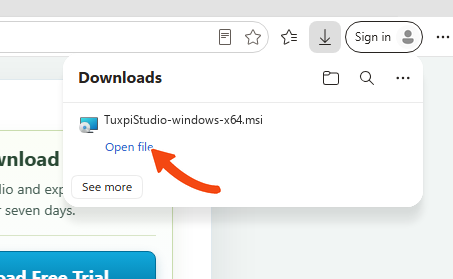
Select Open file when the download finishes. -
Begin setup
When the Tuxpi Studio Setup Wizard opens, select Next.
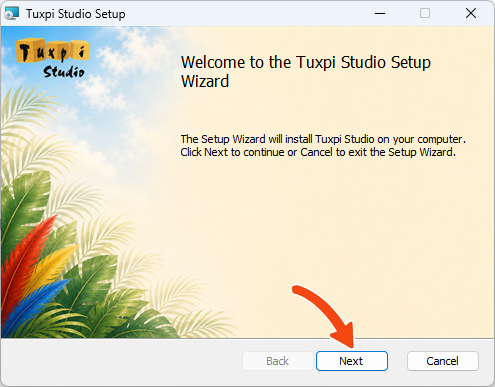
Select Next to begin. -
Install with limited system access
Keep Install just for me selected to avoid system-wide changes, or choose Install for all users of this machine to install in
C:\Program Files.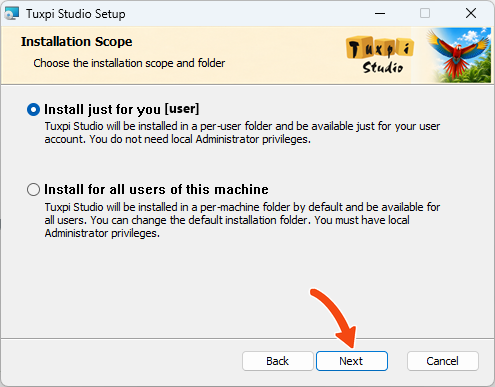
Choose an option, then select Next. -
Review the setup options
Keep the default desktop shortcut and project-file options, or change them if you prefer. Select Next.
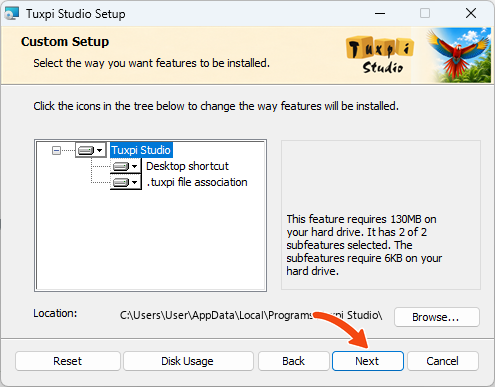
Review the options, then select Next. -
Install Tuxpi Studio
Select Install. If Windows asks for permission, choose Yes to continue.
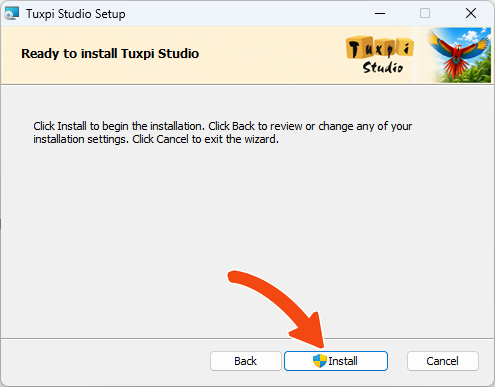
Select Install to start installation. -
Wait for installation to finish
Keep the setup window open while the files are copied.
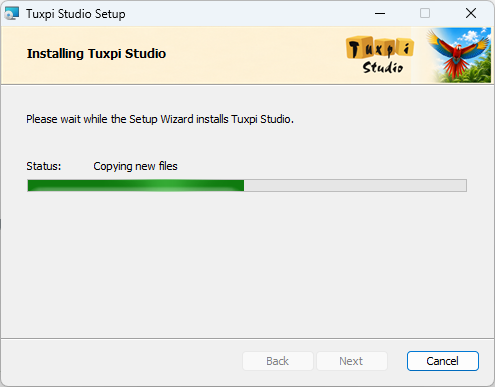
Installation usually takes only a moment. -
Finish and open Studio
Keep Run Tuxpi Studio after installation selected, then choose Finish.
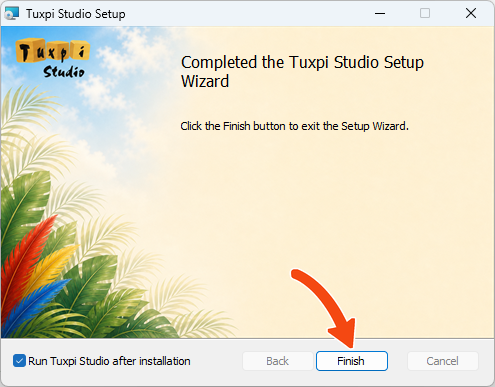
Select Finish to open Tuxpi Studio. -
Start your free trial
When Studio opens, select Start 7-day trial. Already purchased? Enter your license key and select Activate instead.
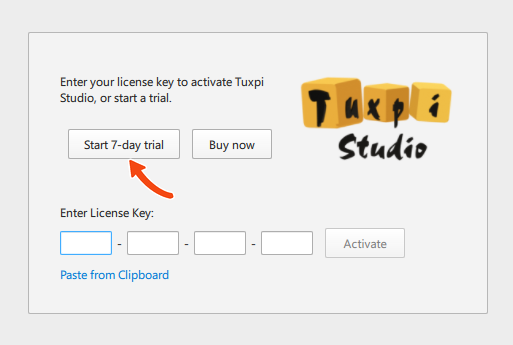
Select Start 7-day trial to begin.
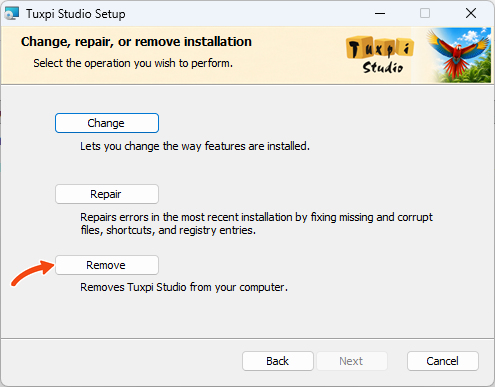
You can uninstall at any time
Open Windows Settings, choose Apps, then Installed apps on Windows 11 or Apps & features on Windows 10. Find Tuxpi Studio and choose Uninstall.
When the Tuxpi Studio setup window appears, select Remove to uninstall the app.